
KeyRocket: Learn MS Office and Windows Keyboard Shortcuts
Some people are predominantly mouse users and some are predominantly keyboard users, and if you pit one group against the other, the keyboard user will almost always finish a task faster than the mouse user. Why is that? Because keyboard shortcuts save time. Every time you use your keyboard instead of reaching for the mouse, navigating the pointer to the correct button or menu, and clicking, you're saving anywhere from 2-10 seconds. When you work eight hours a day, all these seconds count and you end up saving as much as 30 minutes or more each day, at least, according to Robertson Mcllwain who created KeyRocket.
KeyRocket is a software that helps users learn keyboard shortcuts. As you keep working on Windows and Microsoft Office applications, the software monitors your actions. Whenever it recognizes that a specific series of mouse actions were performed, it alerts the user through a pop-up the equivalent keyboard shortcut that performs the same action. The idea is that, when reminded a sufficient number of times, the user will learn to use the keyboard shortcut instead.

For example, if you select some text and click the “Bold” button in Microsoft Office, KeyRocket will teach you that you can press the key combination Ctrl+B to do the same thing. It is hoped, that over time, you will start using Ctrl+B instead of reaching for the mouse everything you need to make text bold. And when you actually start using the keyboard, KeyRocket will congratulate you on mastering the shortcut.
By default, KeyRocket will only urge you to use shortcuts when you persistently use a particular mouse action, say more than 3 times or 5 times in a session. One time actions are ignored so as not to overwhelm you with keyboard shortcuts you don’t need to remember. If you already know and frequently use a shortcut, KeyRocket will not attempt to suggest it. A shortcut is considered to be mastered after it has been used about ten times. The progress of mastering a shortcut is also tracked in a notification window.
The Statistics Dashboard gives you a unique view of your personal KeyRocket history, displaying Wasted Clicks, Shortcuts Used, Shortcuts Mastered along with your Shortcut Score.

If you just want to learn shortcuts on your own, there is a shortcut browser that is a wonderful resource that reveals all shortcuts for each application. It also explains interesting statistics regarding those shortcuts, such as the likelihood of one being introduced to you through a notification popup and overall popularity.
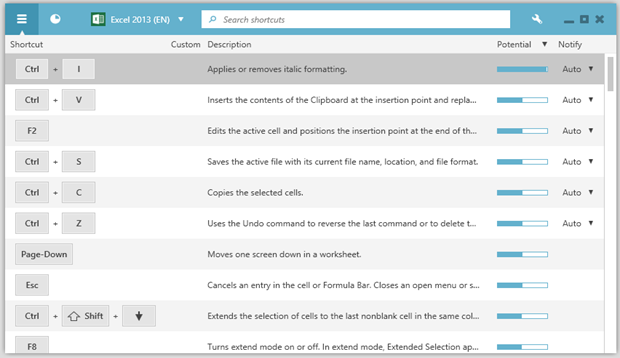
The Shortcut Browser can be accessed by pressing Win+Shift+K or by clicking on Shortcut Browser in the Options Menu in the System Tray.
The free version of KeyRocket works for Windows and some Microsoft Office components (Word, Excel, PowerPoint, or Outlook). By upgrading to KeyRocket Premium, you get access to all of Office, plus Visual Studio.
Some people are predominantly mouse users and some are predominantly keyboard users, and if you pit one group against the other, the keyboard user will almost always finish a task faster than the mouse user. Why is that? Because keyboard shortcuts save time. Every time you use your keyboard instead of reaching for the mouse, navigating the pointer to the correct button or menu, and clicking, you're saving anywhere from 2-10 seconds. When you work eight hours a day, all these seconds count and you end up saving as much as 30 minutes or more each day, at least, according to Robertson Mcllwain who created KeyRocket.
KeyRocket is a software that helps users learn keyboard shortcuts. As you keep working on Windows and Microsoft Office applications, the software monitors your actions. Whenever it recognizes that a specific series of mouse actions were performed, it alerts the user through a pop-up the equivalent keyboard shortcut that performs the same action. The idea is that, when reminded a sufficient number of times, the user will learn to use the keyboard shortcut instead.

For example, if you select some text and click the “Bold” button in Microsoft Office, KeyRocket will teach you that you can press the key combination Ctrl+B to do the same thing. It is hoped, that over time, you will start using Ctrl+B instead of reaching for the mouse everything you need to make text bold. And when you actually start using the keyboard, KeyRocket will congratulate you on mastering the shortcut.
By default, KeyRocket will only urge you to use shortcuts when you persistently use a particular mouse action, say more than 3 times or 5 times in a session. One time actions are ignored so as not to overwhelm you with keyboard shortcuts you don’t need to remember. If you already know and frequently use a shortcut, KeyRocket will not attempt to suggest it. A shortcut is considered to be mastered after it has been used about ten times. The progress of mastering a shortcut is also tracked in a notification window.
The Statistics Dashboard gives you a unique view of your personal KeyRocket history, displaying Wasted Clicks, Shortcuts Used, Shortcuts Mastered along with your Shortcut Score.

If you just want to learn shortcuts on your own, there is a shortcut browser that is a wonderful resource that reveals all shortcuts for each application. It also explains interesting statistics regarding those shortcuts, such as the likelihood of one being introduced to you through a notification popup and overall popularity.
The Shortcut Browser can be accessed by pressing Win+Shift+K or by clicking on Shortcut Browser in the Options Menu in the System Tray.
The free version of KeyRocket works for Windows and some Microsoft Office components (Word, Excel, PowerPoint, or Outlook). By upgrading to KeyRocket Premium, you get access to all of Office, plus Visual Studio.


 Everybody needs a little help in spelling, whether you like to admit it or not. In junior school we had teachers and parents to look over our shoulders and gently correct our spellings and fill in missing prepositions. Today, we have automated spell checkers and we must be thankful that we have them, because without those helpful wriggly green and red lines, the web would be a rather embarrassing place.


