Showing posts with label Software. Show all posts

Mobogenie: Manage Android Devices, Install Google Play Store Apps From Your PC

For those looking for a way to manage their Android phones from the undeniable comfort that only a mouse, keyboard and big screen can provide, there is yet another contender – Mobogenie. This impressive software allows users to manage every aspect of their Android devices from their computer. This includes basic tasks such as back up and restore of contacts, messages, photos, videos and other contents of their phone, as well as some interesting features such as the ability to send SMS from their PC, and download apps, games, ringtones and wallpapers using their computer’s internet connection, thus avoiding additional cost incurred on their mobile bills.

You begin by connecting your Android phone or device and launching Mobogenie, or vice versa. Either way, Mobogenie will correctly identify your phone and display all its contents on your desktop from where you can perform all tasks. For Mobogenie to work, you’ll need to have USB debugging enabled. Your phone should also be rooted.
mobogenie-1
Tools to perform basic tasks such backup and restore, manage contacts, messages, music, pictures, videos, and apps are located on the main window. You can also manage data on your SD card, download and install APKs stored on your PC.
Mobile management includes the following:
  • Contacts
    • View all contacts saved on your phone.
    • Add new contacts or edit/delete old contacts.
    • Import contacts in bulk from CSV and VCF files.
    • Export and save contacts to the PC
  • Apps
    • View all apps and games installed on the device and their size
    • Uninstall or update apps
    • Export apps to the PC
    • Move apps to SD card (if supported) or move apps to phone memory
  • Messages
    • Read messages on your phone in the typical conversation style
    • Import/export or delete messages
    • Send messages from the PC through your mobile carrier’s network
  • Music
    • View all music stored on your device, their title and artist, their size, file type and play duration
    • Play music directly from Mobogenie
    • Set any music as ringtone
  • Pictures
    • See all pictures stored on your phone
    • Import/export images between the phone and the PC
    • Set any image as wallpaper
  • Videos
    • See all videos stored on your phone
    • Import/export videos between the phone and the PC
The biggest feature of Mobogenie is the ability to save cost on your mobile data bill by searching apps on your desktop, downloading them using the PC’s internet connection and sending them to the phone to be installed.
mobogenie-2
Just like the official Google Play Store app or web interface, Mobogenie displays all apps and games available for your phone sortable by categories. There is also a search tool that really works.
You can read the apps description as provided by the developer, view download size, rating, images, and version. User comments, however, are not available.
mobogenie-4
You can also search and download ringtones and wallpapers, browse through the various music genres or just grab the currently trending ones. Ringtones can be previewed before downloading.
mobogenie-3
Similarly, you can preview and download wallpapers.
Pros
  • Complete management of Android device from the PC
  • Backup and restore of all phone data
  • Send SMS from PC
  • Download apps and games without incurring mobile bill
Cons
  • Needs rooted phone
  • Can’t connect via WiFi. Only USB is supported.
  • Available only on Windows
Read more ...

SoundVolumeView: Control Volume of All Devices And Sound Components

Windows 7 has a great volume mixer that enables users to set audio volume of individual devices and programs independent of each other. Many people are not aware of it because the mixer is hidden.
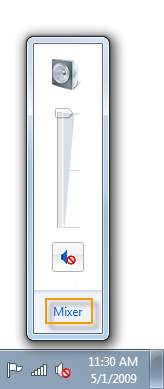
The advanced volume mixer panel can be launched by clicking on the speaker icon in the notification area (system tray) and then clicking on the link “Mixer” as shown below.

volume-mixer
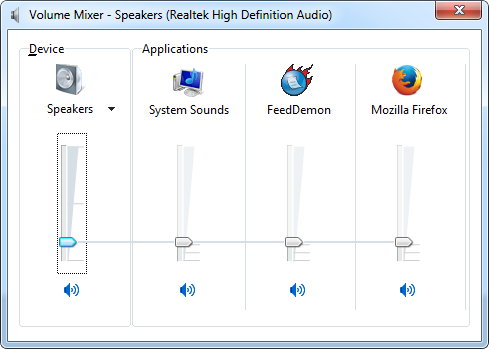
This will launch the volume mixer.
volume-mixer2
Here you can independently control the volume of all running applications and sound devices which are currently using Windows Audio support, as well as the master volume of your PC. For instance, you can increase the volume of a YouTube video running in Firefox, while lowering system sounds such as notifications. You can also individually mute a device or application.
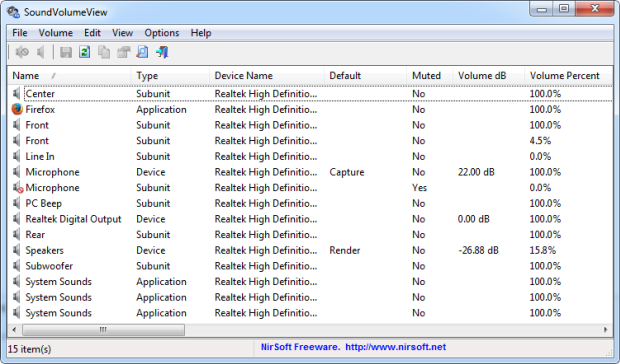
Without a doubt, the volume mixer is very smart and useful, but it still doesn’t show all devices. To see what you are missing, just download and run SoundVolumeView.
SoundVolumeView2
SoundVolumeView is a tool by Nirsoft designed for Windows Vista/7/8/2008 that displays general information and current volume level for all active sound components on your system, and allows you to mute and unmute them instantly.
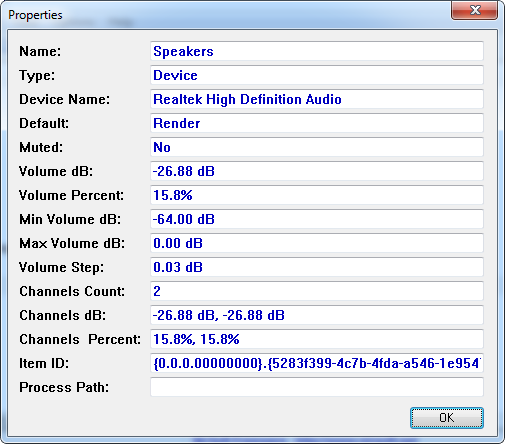
The tool displays an extensive set of information for each component - the current volume level in percentage and in Decibel for devices and subunits. For subunits, the volume level is displayed for every channel separately.
SoundVolumeView
You can select multiple devices and apps and adjust volume level together with keyboard shortcuts.
SoundVolumeView also allows you to save a sound profile into a file, containing the current volume level and the mute/unmute state of all sound components, as well as the default sound devices, and then later, load the same file to restore exactly the same volume levels and settings. Be aware that sound profiles are bound to specific computer and its devices. You cannot save a sound profile in one computer and then load it into another computer.
There is also extensive command-line support, which allows you to save/load profiles, change current volume of every sound component, and mute/unmute every sound component, without displaying any user interface.
Read more ...

EagleGet: A Fantastic Download Manager and Video Downloader

Back in the days of dial-up internet, download managers and accelerators were very much in vogue. These software grew out of necessity to speed up transfer of files across the internet, and were widely adopted by users in the hope of getting the most out of the limited bandwidth they had access to. When high speed internet connections replaced dial up internet, download managers and particularly download accelerators went out of fashion. Although it’s questionable whether these software causes any acceleration in downloads, there is one good reason why they are still relevant - web browsers make poor download managers.

Download managers built into web browsers are elementary. While it gets the job done, if you want more control over the download process, more information about the file being downloaded, want to keep logs and perform post-download cleanup, verification etc., you need a dedicated download manager.
For a long time, I was a fan of Orbit Downloader. But after the recent discovery of malware in the software, I removed it from my computer and switched to a better download manager called EagleGet.
EagleGet is free, and can do everything you’ve come to expect from a download manager. This includes the ability to download files over HTTP, HTTPS, FTP, MMS and RTSP protocol, clipboard monitoring to automatically download files copied to the clipboard, browser integration, batch download, automatic virus scan, scheduler and more.

The User Interface

eagleget-7
EagleGet has a very neat and clean UI. There are only four large button in the toolbar, as opposed to dozens of buttons you normally find in software of this kind. Only the most important buttons are visible in the toolbar – a button each to launch a new download process, open the video sniffer, clean up the download list, and open the configuration window.
The buttons to pause, resume, open or delete a downloaded file remains hidden, and are activated only when you hover the mouse pointer over the download process. Additional options become available when you right-click on an item in the download window.
eagleget-3
Completed downloads are automatically removed from the list and logged under the “Completed” section in the navigation panel on the left. These are automatically categorized by type – media, documents, software and compressed. If you allow it, the software will also organize downloaded files on your hard disk into sub-folders by file type.
Additionally, the interface is customizable. You can make the window take any color or set any image as background for the toolbar and window border.
eagleget-5

Video Sniffer

EagleGet has a video sniffer that helps you search and download online videos without visiting the webpages. Coming from Orbit Downloader, this is not quite as I expected.
eagleget-4
According to the developers EagleGet should integrate with any webpage containing videos, “no matter which browser you are using”, allowing you to download video with just one click. Unfortunately, this hasn’t worked for me so far.

Configurations

eagleget-6

Features in a nutshell

  • Accelerate downloads by using multi-threaded technology.
  • Download online videos from popular sites.
  • Optimized for HD and HTML5 web videos.
  • Built-in Video Sniffer.
  • Support MMS, HTTP, HTTPS, FTP and RTSP protocols.
  • Support HTTP and SOCKET proxy.
  • Batch downloads function.
  • Support fully customized User-Agent.
  • Automatic refresh expired download address.
  • Download files in Chrome, IE, Firefox and Opera with one click.
  • Download different file types to separate folders.
  • Monitor running and completed tasks with TaskMonitor.
  • Built-in download scheduler.
  • Supports drag-and-drop to rearrange the priority of downloads.
  • Automatic run virus scan after download.
  • Convenient task properties panel.
  • Detailed connection log for each task.
  • Verify integrity of downloaded files.
  • Shutdown, hibernate or sleep computer after completing all transfers.
  • Built-in speed limiter.
  • Silent Mode (or Game Mode) function.
  • Import download lists from other download managers.
  • Supports multi-language interface (up to 20 languages).
Read more ...

Genymotion: Easy to Use Android Emulator for Windows

Different Android devices behave differently, which is why Android emulators are a great thing for developers, because it gives them an opportunity to develop applications without having a real Android device. A basic Android emulator is included with every copy of Android SDK. But using the default Android emulator is not a very pleasurable experience.

Genymotion is an alternative, cross-platform Android emulator based on the open-source project AndroVM. It runs on all major platforms - Windows, Linux and Mac. Because it is so easy to use, Genymotion can be used by anyone and not just developers to test drive new Android apps or to see how the latest mobile operating system from Google fares.
genymotion
Genymotion uses VirtualBox to run pre-configured images of virtual devices with or without Google Apps (Play Store, etc.). Virtual devices are based on a real devices such as Nexus 7, Nexus S, Nexus One Jelly Bean, WXGA Tablet, WSVGA Tablet, and more. Windows users do not need to separately download VirtualBox as it is included with Genymotion.
To download Genymotion, open this page and register an account on their website. After the registration is completed, you can download the software. Registration is necessary as you will require to sign in to your account when you launch Genymotion on the desktop.
Once you have signed in to your Genymotion account from the desktop via the Genymotion software, select a virtual device image to download. When the download completes, you will be asked to connect to ADB (from Android SDK) for various purposes like copying a file to VM, installing apps, debugging, etc. This step is optional.
Now load the virtual device and play around with your mouse.
gennymotion
See more screenshots here.

Features

  • Large number of pre-configured virtual images. (Galaxy Nexus with Android 4.1.1 and 4.2.2, Nexus 7 with Android 4.1.1 and 4.2.2, Galaxy S4 / HTC One / Xperia Z with Android 4.2.2, Nexus One and Nexus S with Android 4.2.2 or 4.1.1, as well as some generic images for WXGA 10.1'' tablets and WSVGA 7.0'' tablets with both Android 4.1.1 and 4.2.2.)
  • Connects to internet with using the host connection, but emulates it as a WiFi connection.
  • Emulates GPS with configurable coordinates, and battery with configurable battery levels
  • Emulates accelerometer with the ability to rotate device.
    • Right click + Move up: Tilt forth;
    • Right click + Move down: Tilt back;
    • Shift + Right click + Move left: Rotate Left;
    • Shift + Right click + Move right: Rotate Right.
  • Supports OpenGL hardware acceleration, multiscreen, full screen display
  • Comes with Google Play and Google Maps installed
  • Supports multi touch gestures such as zoom. (Right click + Left/Right arrow key)
  • Supports ADB
Genymotion is free to use and will continue to be so with many advanced features but there also will be paid versions in the future.
Read more ...

List of Things You Can Get for Free With a .EDU Email ID

One of the perks of being a student is the ability to get student discounts. Many retailers offer handsome rebates on products such as clothing, magazine subscription, movie and flight tickets, insurance and of course, software. Some service related industries and software companies in particular give one hundred percent rebates on their products. In this article, we will focus only on those products. Those who are interested in all types of student discounts, a simple search for “student discounts” on your favorite search engine will reveal plenty of offers.

To be eligible for student discounts, sometimes all you need is a .edu email address provided to you by your university or college. If you have one and it still hasn’t expired, give yourself a shot at these freebies.

Microsoft DreamSpark

dreamspark
DreamSpark is a Microsoft program to provide students with Microsoft software at no charge. The program was originally available for university/college students in Belarus, Belgium, China, Finland, France, Germany, India, Italy, the Netherlands, Spain, Sweden, Switzerland, Tunisia, the U.K. and the U.S., but has now been expanded to more than 80 countries and is offered to many high school students. To register, students must visit the DreamSpark website and verify their identity. If an institution is not listed on the available list, the user may manually verify their student status by uploading a proof such as an ID card.
Software that are available for free download through the DreamSpark program include multiple editions of Visual Studio, Expression Studio, Microsoft SQL Server, Windows Server, and Windows Embedded. DreamSpark also offers waiver on Windows Marketplace and Windows Store, and from time to time, announces discount on flagship products such as Microsoft Office and Windows.

Autodesk

autodesk
Autodesk is terribly philanthropic towards students. Under their students program, the software company gives away practically everything they own, which includes:
AutoCAD for Mac
Autodesk 3ds Max
Autodesk 3ds Max Design
Autodesk Alias Automotive
Autodesk Alias Design
Autodesk AutoCAD
Autodesk AutoCAD Architecture
Autodesk AutoCAD Civil 3D
Autodesk AutoCAD Electrical
Autodesk AutoCAD Map 3D
Autodesk AutoCAD Mechanical
Autodesk AutoCAD MEP
Autodesk AutoCAD P and ID
Autodesk AutoCAD Plant 3D
Autodesk AutoCAD Raster Design
Autodesk AutoCAD Structural Detailing
Autodesk Ecotect Analysis
Autodesk Fusion 360
Autodesk Green Building Studio
Autodesk Impression
Autodesk InfraWorks
Autodesk Inventor Professional
Autodesk Inventor Publisher
Autodesk Maya
Autodesk MotionBuilder
Autodesk Mudbox
Autodesk Navisworks Manage
Autodesk Quantity Takeoff
Autodesk Revit
Autodesk Revit Architecture
Autodesk Revit MEP
Autodesk Revit Structure
Autodesk Robot Structural Analysis Professional
Autodesk Showcase
Autodesk Sim 360
Autodesk Sim 360 Pro
Autodesk Simulation CFD
Autodesk Simulation Mechanical
Autodesk Simulation Moldflow Adviser Ultimate
Autodesk Simulation Multiphysics
Autodesk Smoke
Autodesk Softimage
Autodesk T_Splines Plug_in for Rhino
Autodesk tsElements Plug_in
Autodesk Vault Basic Server
Autodesk VRED Professional

Amazon Prime

amazon
Amazon Prime is a service under which the online retail giant offers free two-day shipping on all eligible purchases, as well as discounted one-day shipping rates, instant streaming of thousands of movies and TV shows with Prime Instant Video, borrow Kindle books for free reading and other benefits, for a flat annual fee (currently $79/year).
For students, Amazon offers this service free for 6 months after which they get a 50% discount.

LastPass Password Manager

LastPass Password Manager is an online password management service, and is available as a plugin for Internet Explorer, Mozilla Firefox, Google Chrome, Opera, and Safari. The basic service of LastPass is free, which includes one-click login, form filling and cross-browser synchronization. Under Premium subscription, one gets the ability to import and export data, backup and restore, stronger passwords and more.
Those having a .edu email ID can get LastPass Premium for 6 months.

The Washington Post

Founded in 1877, The Washington Post is one of the oldest and most widely circulated newspapers in the United States of America. The newspaper offers free digital subscription to anyone with a valid .edu, as well as, .gov and .mil email address.

WestHost

WestHost offers students with a .edu email ID, free webhosting for a year.

ZW3D

ZW3D is all-in-one, CAD/CAM software, which enables concept to finished product design in an integrated, collaborative environment. Supported by its Show-n-Tell built-in learning system, ZW3D includes data exchange to allow efficient reuse and sharing of designs, hybrid modeling with its unique Overdrive kernel, mold and die design with cavity preparation tools and component libraries, and intelligent, adaptive CNC machining from 2-axis through to 5-axis.
Students are offered free 12-month licenses.

Prezi

Prezi is a cloud-based presentation software, not unlike Microsoft PowerPoint, and storytelling tool for presenting ideas on a virtual canvas. The product employs a Zooming User Interface (ZUI), which allows users to zoom in and out of their presentation media, and allows users to display and navigate through information within 3D space.
Prezi can be used by teachers and students to collaborate on presentations with multiple users having access and the ability to edit the same presentation. At no extra cost, students can remove the Prezi logoi and replace with their own and also get 500MB of storage space.

GitHub

GitHub is a web-based hosting service for software development projects that use the Git revision control system. GitHub offers both paid plans for private repositories, and free accounts for open source projects.
GitHub offers Educational Accounts for academic people (student, teacher, etc.) for 2 years that includes 5 repositories. These plans usually cost between $7/month and $22/month.

Lucidchart

Lucidchart is a web-based diagramming software which allows users to collaborate and work together in real time to create flowcharts, organizational charts, website wireframes, UML designs, mind maps, software prototypes, and many other diagram types. Built on web standards such as HTML5 and JavaScript, Lucidchart is supported in all modern web browsers like Google Chrome, Firefox, Safari and Internet Explorer 8+.
Lucidchart offers Educational accounts, which are equivalent to Pro accounts, to all students having .edu, .ac.* and .k12.*.us email IDs for free.
Read more ...

Batch Script to Uninstall Programs by Keywords

Small software developers often try to generate revenue from their free software by bundling third-party software as well as display advertisements into the installer. These third-party software serve no useful purpose other than try to push the user into paying for something they don’t need, such as Windows registry cleaners. Then, there are browser toolbars whose purpose is to gather data about the user’s browsing habits such as the websites they visit, search engine they use and the queries they make. What happens to the data is anybody’s guess. Occasionally, there would be malicious programs that harm the system or consume inordinate amount of resources that makes the computer less responsive.

These programs are not difficult to remove. Unlike, malware they usually make no attempt to hide or obfuscate their executables. You can find them listed plainly under “Programs and Features” tool in Windows’ Control Panel and can identify them from their names. If you have tons of crapware on your computer (maybe your kid downloaded too many smilies or free games), and you don’t have the time to manually uninstall each and every program, you can try uninstalling them by keywords.
To do this, we will use a free and open source batch script called Crap Killer. The script searches through the registry for installed programs and makes a list of useless ones based on their names. Then it automatically uninstalls them using msiexec.exe or, if that's not an option, using their built-in uninstaller.
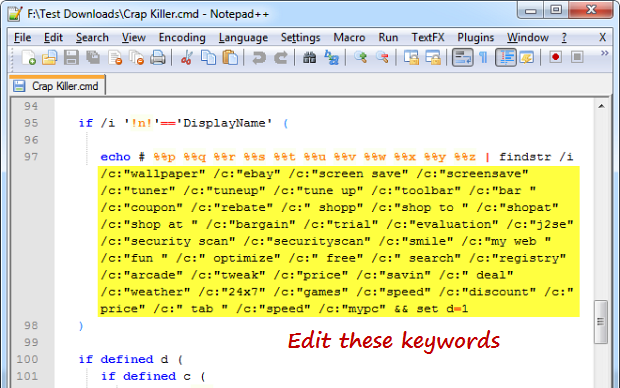
Crap Killer contains a list of keywords that are commonly associated with crapware. These keywords can be edited by the user by opening the batch script in a text editor of their choice, making the necessary edits and saving the changes.

crapkiller-keywords

The keywords that Crap Killer looks for in the registry are as follows. They appear on line no#97 on the batch script.
wallpaper, ebay, screen save, screensave, tuner, tuneup, tune up, toolbar, bar, coupon, rebate, shopp, shop to, shopat, shop at, bargain, trial, evaluation, j2se, security scan, securityscan, smile, my web, fun, optimize, free, search, registry, arcade, tweak, price, savin, deal, weather, 24x7, games, speed, discount, price, tab, mypc
You will notice that some of these keywords are potentially “dangerous” in the sense that they can affect legitimate programs. For instance, the string “free” often appears in the names of many great freeware such as those developed by “Freemake” and many others, as you can see from the screenshot below.

crapkiller

Similarly, the string “speed” will flag “Need For Speed” as a bad program, while “weather” and “wallpaper” will attempt to uninstall any innocent weather and wallpaper changing program you may have. Herein lies the real problem with the script - Crap Killer will uninstall all programs that returns a positive match for any of these keywords, without warning or confirmation.
It is recommended to edit the list of keywords before you run it. Remove problematic keywords like “speed” and “free”, and add genuine offenders like “AOL” and “WildTangent” to further enhance the function of the script.
Read more ...

Looking Beyond CCleaner: 5 Great Alternatives

CCleaner is a great all round system cleaning utility that works as advertised. It cleans browser history, removes cookies and cache, deletes temporary files, uninstalls programs, deletes file usage history of Windows and many Windows’ programs. It also helps manage startup programs, find duplicate files and shreds files. For many, this is the only tool that is needed to keep the system well oiled and tuned. But sometimes it is necessary to find out what other developers are offering, because if you don’t try and experiment, one day you might discover that you’ve been using the wrong tools. You cannot go wrong with CCleaner, but should you wish to change, here is small list to help you get started.

BleachBit

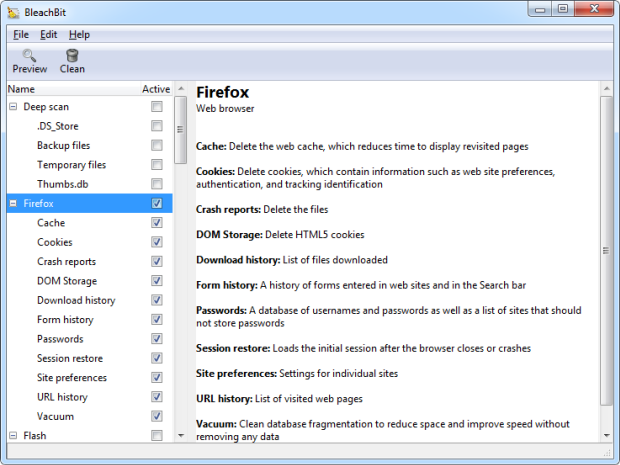
bleachbit

BleachBit is one of the prime candidate that can easily replace CCleaner. The program helps you recover disk space by deleting unwanted files such as browser cache, cookies, temporary files, backup files, log files, broken shortcuts etc. BleachBit can clean temporary files created by over 90 applications by default. This can be extended to include over 1200 more applications by updating an INI file online.

Aside from cleaning, BleachBit can shred files to prevent recovery and wipe free disk space to hide traces of files deleted by other applications. BleachBit is free, open source and is available for both Windows and Linux.

DrivePurge

DrivePurge is one of the most powerful and through junk file cleaner out there finds and removes unnecessary files and user tracks from more than 750 applications and system components. It is also one of the smallest of the lot, weighing just 171KB in download size which expands to some 700KB when extracted.

drivepurge

DrivePurge’s file cleaning functions are categorized under three groups - System Cleanup, Drive Cleanup, and User Tracks Cleanup. The System Cleanup tab lists all common locations where temporary and unneeded files are known to reside. This include Windows locations such as Cached fonts, ChkDsk files, Error reports, Temporary folders, Memory Dumps, Media Center Album Art Cache, Thumbnail Cache, HTML help files etc. Junk files created by popular programs like Adobe, Mozilla Firefox, and Sun Java can also be removed through this tool.

The User Tracks Cleanup section is for removing file history. This includes Windows explorer MRUs, folder settings, recent documents, run history, msconfig entries, Microsoft Games statistics, and application specific history.

In the Drive Cleanup tab are search filters that lets you scan your entire hard drive or selected partitions for waste files. This is where DrivePurge shines through. The program has an extensive list of file type filters that will hunt down any kind of files that are of little use – old files, automatically created backup files, repair files, error files, empty files, and temporary files.

DrivePurge is an amazingly powerful program, but if used carelessly can easily screw up your system.

SlimCleaner

slimcleaner-

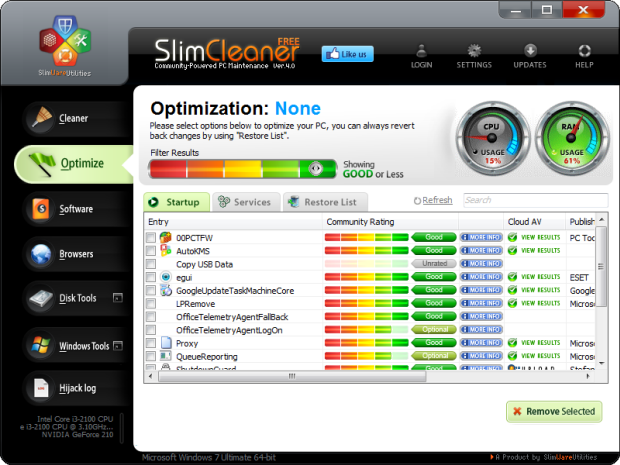
SlimCleaner is a system cleaning and maintenance utility for Windows that makes use of user ratings to help you decide which items should be removed and which kept.

The program’s primary tool is the cleaner. This tool takes care of Windows temporary files, history logs, lists of recently opened documents and other unnecessary elements. It can also clean files from locations used by popular Windows applications to store logs and document history. A wide variety of Windows programs such as media players, productivity tools, browsers and anti-malware software are supported.

SlimCleaner also features an optimization tool to analyze start-up items and active services, and an uninstaller and a shredder that helps you get rid of files securely. This is where the program employs the crowd to help you decide. Against each startup entry and installed program is a colored bar that shows the rating of the program as rated by the program's users.

slimcleaner-2

There are three level of ratings. A rating of Good indicates the program is trustworthy; Optional indicates that the program is not critical and can be removed while Unwanted indicates harmful applications and or programs that serve no good purpose. Programs that aren’t rated by the community are shown as Unrated.

You can also give back to the community by adding your own ratings.

Other tools include file shredder, disk wiper, disk defragmenter, duplicate file finder and a tool that can generate a Hijack Log that displays a list of toolbars, browser helper objects, ActiveX plug-ins and other items installed on the machine. Again from the user rating you can decide whether these programs are really necessary or junk.

FileCleaner

filecleaner

FileCleaner is a Windows cleanup and speedup tool that will delete junk files like temporary Internet files, browser history, system temp files and other debris that accumulates on a computer after prolonged use. It also cleans usage history of many Windows application but the support is not that extensive as that of CCleaner.

FileCleaner can also remove toolbars and browser plugins, but use this feature with caution because it identifies all browser extensions as toolbars/plugins, and may irrecoverably remove them.

FileCleaner’s primary selling point is its’ real-time browser history cleaner. When enabled, the program can clean logs and temporary files as soon as the user closes the web browser or the IM program such as Yahoo messenger, and Google Talk.

KCleaner

kcleaner

KCleaner is more of a disk cleaner than a history eraser. You can’t remove browser history, but you can do delete browser caches, cookies and anything that consumes disk space. This includes temporary files, Windows installer duplicates, various application’s installer cache such as Adobe Reader, Skype and Apple’s installer cache, Windows hotfix uninstallers etc.

Rather than replacing CCleaner, KCleaner should be used together with CCleaner for the maximum effectiveness.

Read more ...

BZR Player: An Audio Player That Supports 480 Formats Including PC and Console Game Music

BZR Player is an audio player, or “sound player”, as the developers like to call it, whose primary goal is to play as many different audio file formats as possible, even non-standard ones like those used to pack music data in video games. Currently it plays over 480 different formats. Supported formats includes numerous audio files as well as formats used by hundreds of video games of consoles like Amiga, Atari, Nintendo, C-64, PlayStation, XBOX, WII, and many many more.

Video games pack music in special containers that cannot be played back in a normal music player. These formats are, however, very common among games of certain platforms, such as the .NSF extension is used by music in Nintendo games and .MED is used by many Atari games. Other game developers use propitiatory formats, for example, Unreal Games use the file extension .UMX to pack music data while Eidos Interactive have their own .EMFF extension.

bzrplayer

BZR Player can play all these files. In fact, BZR Player can play files even if the file was saved with the incorrect extension. As long as the data is playable, it ignores the extension. So you can take an MP3 file, for instance, and save it as song_name.whatever and it will still play perfectly fine. What’s more, it will even play audio files that are compressed inside archives such as rar, zip, 7-zip, lha, atr, gzip, bzip2 etc.

BZR Player includes multiple engines to handle all these formats, and you can even tweak the engines a bit from the settings window.

bzrplayer-settings

BZR Player looks like any typical music player with controls, seekbar and display on the top panel, and a detachable playlist window on the bottom panel. An additional file information panel can be enabled that docks to the right or left of the main player window. The info panel can show MP3 tags (id3v1 and id3v2) and instruments, samples, patterns etc.

On the top panel you can see buttons for Normalizer, Reverb, Shuffle and Repeat. The real time normalizer makes all sounds play with the same level of volume eliminating surprises caused by sudden loud playing audio files. The Reverb button gives a nice reverb effect and is suitable mostly for old C64/Amiga sounds for example since they can sound a bit "flat" otherwise. Shuffle and Repeat buttons, as you already know, control the playback of the playlist. Another slider controls the pitch of the playing audio causing it to play faster or slower than the normal speed.

BZR Player has no fancy visualization display but shows a lot of geeky information in the “Pattern” window. The Pattern window displays the currently playing notes in some kind of a format that I’m not quite sure. Notes can only be seen for supported audio files such as AHX, HivelyTacker, Screamtracker 3, Digi Booster, Star Trekker, Game Music Creator, Sound/Pro/Noise Tracker, Ice Tracker.

Other Features:

  • Unicode Support: Can play files with foreign letters in the filename, but this is only supported for about half of the file formats.
  • Drag & drop: Interface supports drag and drop to open files or directories.
  • Customizable Interface: The background color of the display can be changed, and playlists fonts can be adjusted too.
  • Bookmarks: Add bookmarks for audio streams or files.
  • Subsounds: If a file format may contain multiple sounds, BZR Player can play those.
  • Limit sound length: Some sounds have an unknown length, and the user can specify a maximum sound length for such sounds, so that they don't play forever.
  • Playlists: Supports loading of M3U, PLS and NEZPlug M3U (supports subsongs) and saving in M3U format.
  • Socket control: You can control BZR Player with sockets by sending commands to port 9859, good for integrating the player in other software.
  • HTTP Streaming: Also plays internet radio streams.
Read more ...

KickMyGraphics: Create and Edit Animated GIFs from Images and Videos

KickMyGraphics: Create and Edit Animated GIFs from Images and Videos

KickMyGraphics is a small, intuitive freeware program that can create animated GIF images from multiple images and even from videos. The program supports a wide range of formats: jpg, png, bmp, gif – for images, and mpg, avi, asf, mp4, wmv, mov and a couple of others, for videos. Aside from creating new animated GIF images, KickMyGraphics can break open videos into their individual frames, or modify existing GIF images into new ones.
To get started, click on the “Add graphics” button and load a sequence of images into the editor. The graphic will immediately start playing in an endless loop, which I found distracting. Quickly hit the Space bar to pause the animation.
kickmygraphics

Instead of a sequence of images, you can load a video file and the program will split the video into its constituent frames. There is a limit to the number of frames you can import – 350. This is the absolute limit KickMyGraphics can handle at a time. 350 frames translates to about 11.7 seconds of video playback, at 30 fps. If your video is longer, use a video editor to trim to the video to the required length.
Initially, all images/frames loaded into the program are selected. If you don’t want to include certain frames in the animation, you can deselect them by clicking on it. KickMyGraphics has an exceedingly clever tool that allows you to quickly drop frames from an animation, which is particular handy when converting videos into animated GIFs.
A typical video playbacks around 30 frames per second but this is too high for GIF images. GIF compression is not optimized for video, so the file size of a converted animated GIF image will almost always be larger than that of the original source video file. The only way to keep file size down is to have a slower frame rate (or poorer quality), and that calls for frame dropping.
KickMyGraphics lets you easily drop frames from a video file by specifying how many frames to skip between two successive frames. Grab the slider called “Step frame(s)” and slide it to the right until you feel the animation is reasonably smooth.
kickmygraphics-2

If the original frames or imported images were large, you can resize them by using the resize slider. You can also zoom into an image by using the zoom slider. Alternatively, you can crop the images to draw the attention to a specific area. Rotating images is also supported.
Select the delay in millisecond between two frames, and the number of times you want the animation to play. The default value of zero will playback the animation endlessly.
KickMyGraphics also offers two interesting animation looping options. “Loopback mode” will play the animation from first frame to the last frame, and when it reaches the end, it will playback in the reverse direction from the last frame to the first. The loop will then start again. Loopback results in seamless animation where you can’t tell where the animation begins and where it ends. The other looping option is “Reverse mode” which is simple reverse playback.
Once you are done editing, select the output quality and click the “Make GIF animation” button to save your finished animation. One problem is that the program doesn’t tell in advance how large the output file will be. There is no way of knowing that until you have saved the file. If the resulting animation turns out to be larger than intended, you might have to make another try.
clap

KickMyGraphics is a very good GIF animator and editor. What it lacks currently is a raster graphics editor. Add that and we’ll have a clear winner.
Read more ...

SynWrite: Powerful Text Editor and UltraEdit Alternative

SynWrite: Powerful Text Editor and UltraEdit Alternative
SynWrite is powerful programmer's editor for Windows which comes packed with a wide range of features that lets you write code as well as handle your coding projects efficiently. SynWrite has many features common to the popular commercial text editor UltraEdit, and even shares its looks, making this open source software an excellent free alternative to the $60 program.

SynWrite supports syntax highlighting for lots of languages. Open any code in SynWrite and you’ll see syntax highlighting – colors that help you understand the code structure at a glance. You can even collapse parts of the code to concentrate on the relevant part. Collapsing codes also makes the code shorter and hence faster to scroll.

SynWrite: Powerful Text Editor and UltraEdit Alternative

On the left-pane, a tree structure view of the code is automatically created that helps you to locate the code you need. SynWrite also has a mini-map panel that shows you a birds eye view of the entire document along side the main editing window, with the visible area highlighted on the thumbnail. MiniMap gives the user a quick idea of which part of the document the coder is looking at, and is very handy for extremely lengthy codes.

SynWrite supports standard text editing features such as autocomplete, spell-check, indenting, find and replace, and various text manipulation and code cleaning tools such as remove blank lines, remove duplicate lines, toggle comments on/off, change case and more.

In addition to standard editing features, SynWrite supports code bookmarks and markers, line operations, quick commenting, macro recording, auto-closing of tags/brackets, clipboard history, and many other useful functions.

SynWrite also comes with a built-in FTP/SFTP client to upload and download your files right to the web server.
Read more ...

Anti Tracks: Privacy Eraser and Disk Cleaner

Anti Tracks is a powerful privacy cleaning software for Windows that can securely erase all your internet tracks, computer activities and usage history of other applications with a click of a button. In addition, Anti Tracks includes a set of advanced security features that allow you to securely hide sensitive files and folders, as well as permanently delete the ones you want off your computer forever. Anti Tracks also has some useful maintenance tools that make eliminating unnecessary applications and files from your hard drive quick and easy. In addition to removing your PC tracks, the program also includes several other utilities that include a startup manager, data concealing, a disk space analyzer, a disposable email generator, and more.

anti-tracks

What Anti Tracks Free Edition can do?

Erase tracks: No matter which browser, application or file you use, Anti Tracks' Tracks Erasing feature will safely and securely erases all your browsers, Windows and third party applications tracks without leaving a single track of evidence behind. The program supports many dozens of third party applications.

anti-tracks2

Clean Junk Files: Over time, your hard drive can accumulate a lot of "junk" files that waste precious disk space and impair your computer's performance. Anti Tracks Junk File cleaner safely scans your system for junk and obsolete files and helps you safely remove them so that you can enjoy optimal system performance.

anti-tracks3

Hide Files and Folders: You can easily hide any file inside any photo of your choice. To anyone else it looks like a simple photo, but when unencrypted it reveals the data inside.

Wipe Disk: Traces of data from all of those files you deleted and emptied from your recycle bin are still on your computer, just waiting to be recovered. Anti Tracks' Disk Wiper scans your hard drive for previously deleted files and folders, then securely erases them with no chance of restoration.

Shred Files: Just like wiping entire disks, Anti Tracks lets you delete individual files securely using a variety of data sanitization standards.

Remove Empty Folders: Anti Tracks will quickly locate all empty folders on your computer and remove the ones you want removed.

Store Passwords: Organize and save your most sensitive information in highly secure and encrypted wallets. If you forget your password and need to lookup, open the wallet to see them.

Remove Broken Shortcuts: Shortcuts are great when they work. But move the file they link to and those shortcuts can lead you to a dead end. With Anti Tracks Broken Shortcuts Cleaner, you can safely scan and remove those broken shortcuts from your Start menu, recent documents folder, Desktop, and anywhere else they occur.

Remove Duplicate Files. Anti Tracks Duplicate Files Cleaner scans your computer for duplicate files and pinpoints their location for you. After choosing which ones you want to keep, Anti Tracks safely disposes of the rest. This handy feature also comes with a backup option in case you're uncertain about which files to save and which to remove.

Generate Disposable Email IDs: Anti Tracks lets you create disposable email addresses right from within the program which you can use to signup up on websites or use for communication with unknown persons. Each email address can be set an expiry period starting from 1 day to 1 year.

anti-tracks4

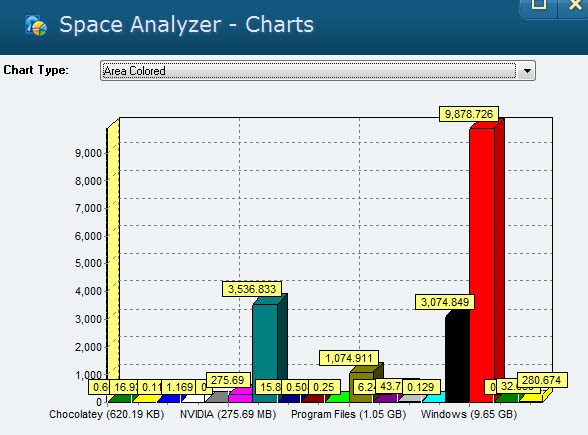
Analyze Disk Space: Understand how your disk space is being used by generating reports and graphs of any drive or folder.

anti-tracks5

Run in Stealth Mode: When you want to ensure no one knows you're erasing your tracks on your computer, you can turn on the Stealth Mode and Anti Tracks runs silently in the background, erasing your tracks without anyone knowing what you're doing.

Panic Key: When you don’t want others in the room to see what we're working on or looking at on our computer, you can hit a user-defined hotkey and Anti Tracks immediately hides you're watching, typing, reading or listening to. While secretly hidden in the background, all of your data is safely preserved.

Uninstall Applications: List all installed programs on the computer and remove the ones you don’t need. Uninstallation still depends on the individual uninstaller that came with the programs.

Manage Startup Programs: Quickly enable or disable which programs launch during Windows startup.

Read more ...

Giveaway: Bitdefender Windows 8 Security

Bitdefender Windows 8 Security is a new antivirus product from Bitdefender tailored specifically for Windows 8. While there are many antivirus software available for Windows 8 (practically, any antivirus program that runs on Windows 7 is likely to run under Windows 8), Windows 8 Security has been designed by utilizing features unique to Windows 8.

The key addition to Bitdefender Windows 8 Security is the support for the new Early Launch Anti-malware (ELAM) feature. As already explained in another article, “Early Launch Anti Malware” provides a mechanism that allows anti-malware software to start before all other third-party components start, including drivers. This allows Bitdefender’s antivirus scanner files to load very early during the boot process, before the malware can load. This improves Bitdefender Windows 8 Security’s ability to detect and kill infectious programs.

bitdefender-win8-security

In addition, the program also includes a “Proactive App Scanner” that automatically analyses your Windows 8 apps and notifies you when one has been compromised. Also included is Bitdefender Safepay, a secured internet browser that keeps digital attacks at bay by automatically opening all your online banking and e-shopping pages in a separate, secure browser.

And of course, the interface is optimized for the Modern UI.

Everything else is identical to Bitdefender Internet Security 2013 (except the interface). This means that you’ve got a real-time scanner, vulnerability scanner, anti-spam, internet firewall, social networking protection, parental controls and more.

Bitdefender Windows 8 Security retails for $60 for 1 year of protection. Thanks to Bitdefender, we have 5 licenses of this antivirus scanner to giveaway to our readers. If you are interested in entering the giveaway contest, leave your name and a valid email ID in the form below. Winners will be selected by a random draw. The contest closes on February 19, 2013.

Read more ...

Shoutcast Explorer: Listen to Shoutcast in Your Default Music Player

Ever since VLC Media Player removed Shoutcast streams from the player I’ve stopped listening to Shoutcast stations. Shoutcast was one of my favorite destination for Internet radio, and it was the only time I used VLC Media Player to play music. At first, I tried to manually download station playlist from Shoutcast but the website was such a mess. Besides, it was troublesome to switch station. Finally, I moved to Icecast and Jamendo that are natively supported by Clementine, my current music player of choice. If you are like me and want to get back to Shoutcast in an easy way, take a look at Shoutcast Explorer.

Shoutcast Explorer is a small open source browser for shoutcast radios stations. You can use it to browse and find radio stations by genre, download radio station playlists and open them with default program associated with it. Simply choose a genre from hundreds that are on offer from the drop-down list on the top-right and Shoutcast Explorer will show you list of stations that are available under that genre. By default, the program shows the top 50 stations but you see up to 500.

shoutcast-explorer

For each station, you can see the song title currently playing, the bitrate of the station, and number of listeners. To play a station, just double click on it and it will immediately start playing in your default music player. Since my default radio station playlist handler is VLC Media Player, it was almost as if Shoutcast had been brought back to VLC – the transition was seamless. Once a station starts playing, you can close Shoutcast Explorer.

shoutcast-in-vlc

To switch station, double click on another radio station in Shoutcast Explorer and it gets added to your media player’s playlist. At any time you can return back to any of the stations you played previously by choosing the station from the playlist. You can create a playlist of your favorite Shoutcast stations and then save this playlist for later. You won’t even need to bring up Shoutcast Explorer again, unless you want to add new radio stations.

Read more ...

Show Your Portable Apps on Windows Start Menu

The best way to carry portable apps on a removable USB Flash drive is to use a portable application suite. Portable application suites are collection of portable applications in a neat package that can be downloaded and installed directly on a pen drive. There are many portable application suites such as PortableApps.com, WinPenPack, Lupo PenSuite and more, among which PortableApps.com is the most popular because of the sheer number of portable applications that is available and supported by this suite. Another advantage of using a portable application suite instead of manually copying portable executables to a thumb drive is that portable application suites come with their own launchers or start menus that allow you to open your programs without having to hunt for them through a file browser. And do you know what’s better than a portable application launcher? Getting your portable apps to appear under Windows Start Menu.

If you wish to do that – have shortcuts to your portable apps on Windows Start Menu, you have to use PortableApps.com’s suite of applications because this trick is exclusively for this particular suite.
portableapps-start-menu

First, download the PortableApps.com Platform which consist of a launcher menu, backup utility, app store, automatic updater and application management system that ties all your portable apps together. You can add new apps, organize them by category or folder, choose the look and color you want and automatically update everything. But we aren’t going to use any of these because we are going to integrate everything right into the existing Windows Start Menu.

Install PortableApps.com to a folder on your Flash drive, and then run it. Initially the launcher will be empty because we haven’t downloaded any portable apps so far. The App Directory window will open automatically, from which select the apps you want to download to your Flash drive. Let PortableApps.com download your apps and ready your drive.

portableapps-dir

Next, download Start Menu Enumerator 1.0 and install it to your Flash drive. Make sure PortableApps.com is already installed on the removable drive and the drive is connected to the machine. Once Start Menu Enumerator 1.0 is installed, run it.

Now check your Windows Start Menu. You should see a folder called “PortableApps” with all your portable apps listed under it. You can click any of it to launch the program from the removable drive. You can also use the search function of Windows Start menu to locate your portable apps.

When you are done and exit PortableApps.com, or eject the removable drive, the “PortableApps” folder and all shortcuts it contains are removed from the Start Menu.

To make Start Menu Enumerator 1.0 run every time you insert the removable drive, right click on the shortcut to Start Menu Enumerator 1.0 on PortableApps.com launcher menu and check the option "Start Automatically".

portableapps-menu2

Now whenever you insert this USB drive on any computer, all your portable apps will appear under the Windows Start menu.
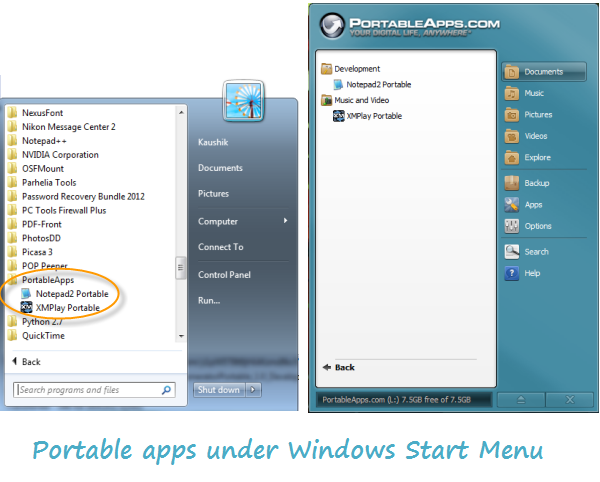
Although Start Menu Enumerator 1.0 is currently offered as an add-on, the authors hinted at the possibility of this feature being integrated right into the PortableApps.com Platform in future.

Related: 3 tools to add a start menu to USB flash drives

Read more ...

Calligra: Another Free Alternative to Microsoft Office

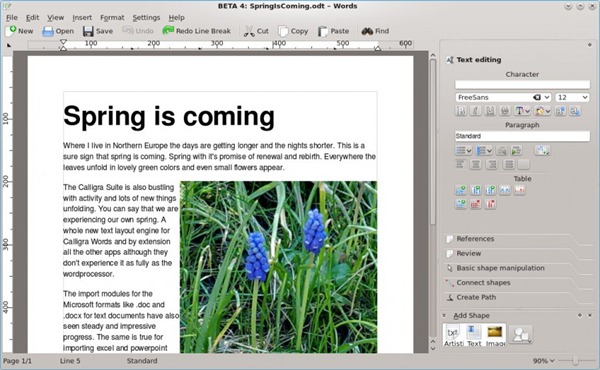
Calligra is a suite of programs for word processing and graphic art developed from the now defunct KOffice, the word processing program for KDE. The program is currently in version 2.6 release candidate 3 and aside from Linux, Calligra is also available for Windows and Mac OSX users. Calligra contains applications for word processing, spreadsheets, presentation, databases, vector graphics, digital painting and more. It uses the OpenDocument format as its default file format for most applications and can import other formats, such as Microsoft Office documents.

Calligra was created as a result of unresolved dispute among KOffice developers in 2010. Following arbitration with the community members, several applications were renamed by both communities. Three applications - Kexi, Krita and KPlato, and the user interfaces for mobile devices have been completely moved out of KOffice and are only available within Calligra. A new application called Braindump has been added to Calligra after the split and KWord was replaced by the new word processor Calligra Words.

Calligra has the following components:

Productivity Applications

  • Words - A frame-based word processor that can work in two modes: page oriented or layout oriented. Calligra Words can open and save ODF documents as it’s default file format. Additionally it’s possible to open Microsoft Office Word files (both .doc and .docx). Afterwards you can edit and save the document to ODF.

    calligra_words

  • Sheets - A powerful spreadsheet application.
  • Stage - A full-featured presentation program that supports a rich variety of elements, from graphics to text, from charts to images. Calligra Stage is extensible through a plugin system, so it is easy to add new effects, new content elements or even new ways of managing your presentation.

    stage

  • Kexi – A visual database management front-end, similar to Microsoft Access and with limited compatibility to Access’ file format.

Creativity Applications

  • Karbon - A vector drawing application.

    karbon-gearflowers

  • Krita - A layered pixel image manipulation application
  • Flow - A easy to use diagramming and flowcharting application with tight integration to the other Calligra applications. It enables you to create network diagrams, organisation charts, flowcharts and more.

    flow

Management Application

  • Plan - A project management application that can create Gantt charts.
  • Braindump - A notetaking and mindmapping application to dump and organize the content of your brain (ideas, drawings, images, texts…) to your computer.
Read more ...

Save ‘Giveaway of the Day’ Setup Files With UnWrapper GOTD

You must be familiar with Giveaway of the Day (GOTD). It’s a popular website that hosts software giveaway everyday, all round the year. Each software offered on the site is free only on that particular day and should be downloaded, installed and activated on the same day. A protection software included with the download makes sure that you cannot install the program once the 24 hour giveaway period has expired, even if you’ve still got the installer.

But there was a weakness in the Giveaway of the day wrapper that was exploited last year to extract the original installer of the program. Without the security of the wrapper, this program could then be installed at any date irrespective of the current giveaway at GOTD. It took the website’s programmers a few months before the loophole was fixed. The exploit doesn’t work anymore.

gotd-wrapper

The new wrapper is more secure that stops people from keeping the software for future installs and it reportedly utilizes a technology similar to rootkits. But the wrapper’s security has been broken once again, this time by Maximus, a member of the cracking group REVENGE Crew. It is a tiny portable executable, that allows you to extract the original setup installer from the new wrapper and keep it for later use, just like before.

This is how to use it: First, download the software from Giveaway of the Day and extract the contents of the ZIP file to a folder. Inside there will be a Readme.txt which will contain serial numbers, a Setup.exe and a Setup.gcd. Now run the UnWrapper GOTD executable and it will popup a dialog box asking you where the extracted Setup.exe file is. Simply locate and double click on the file.

The setup procedure will then launch the Activating window will show while the server is being contacted. Then you should receive a popup box telling you that the original installer has been saved in the same folder as the GOTD setup executable.

gotd-unwrapped

Open the folder where you extracted the GOTD zip file and the program installer should be there. You can proceed with the installation that was already started, or cancel it if you don’t want to install the software right now.

gotd-unwrapped2

via Raymond

Read more ...