Showing posts with label Windows 8. Show all posts

Touch Friendly Firefox for Windows 8 is Ready for Testing

Mozilla has been working on a touch optimized version of Firefox ever since Microsoft revealed Windows 8 and the special version of Internet Explorer designed for Windows Start Screen interface. For a while, this touch friendly version of Firefox for Windows 8 made especially for tablets was available on the Nightly channel. Yesterday, Mozilla pushed this version out of Nightly and into Aurora, which means that this particular build is more stable than the former and while it’s not exactly ready for consumers, it’s good enough to be used by people who aren’t technically savvy or are developers and bug hunters.

To test Firefox Aurora in Windows 8, you need to make sure it is the default browser. If this is the first time you are installing the Aurora build, you will be asked whether you want to set the browser as the default. Choose yes. If you already have Aurora installed but it is not set as your default browser, then follow the steps below.
  1. Right-click on the Start button and on the context menu, click on “Control Panel”.
  2. On Control Panel, click on Default Programs.
  3. Next click “Set your default programs”.
  4. Allow the programs list to load. When it does, select “Aurora” and then click on “Set this program as default”.
Alternatively,
  1. Open Firefox Aurora on the desktop.
  2. From the Aurora menu on the top, click on Options.
  3. Click on Advanced and then switch to the General tab. Now click on the button that says “Make Aurora your default browser”.

Firefox 26 Aurora

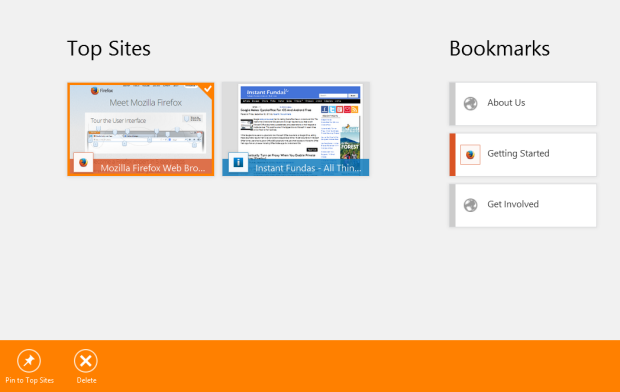
Firefox 26 Aurora is a lot different than Firefox is for desktop, which is expected. Yet, it doesn’t make users feel handicapped or helpless that Internet Explorer for Windows 8 seems to make. For instance, you still have access to the start page where you can find your most visited pages or pin your favorite sites. Your bookmarks and Recent History is also available from the same page.
firefox-26-aurora-4
Do note that, Firefox in Windows 8 mode doesn’t share bookmarks, history and passwords with the desktop version. To share them, you need to enable Sync.
From the toolbar, you can bookmark a page, pin a page, search within a page, or view the page on the desktop browser.
firefox-26-aurora-1
firefox-26-aurora-3
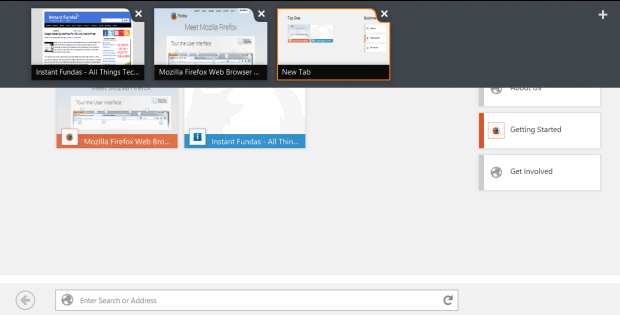
To access the tab bar, all you need to do is right-click anywhere inside the browser window.
firefox-26-aurora-2
For a full list of changes in Firefox 26 Aurora, and not just Firefox for Windows 8, see this page.
Read more ...

4 ways to play Android games on windows XP/7/8


There are hell lot of Android games and apps available for free, many are addicted to play Android games these days. But the sad thing is many awesome games are available only for the Android. What if you wanted to play Android games on your windows PC? Yes now you can play an Android game or App on your windows 7 / 8 / XP. This post will show you “How to play android games on windows XP / 7 / 8”. We are going to do this using Android emulators. Here are the 4 ways using which you can ply Android game in windows Operating system using Android emulators


1. Using Bluestack to play Android Games on windows 7 / 8 / XP

Bluestack is a free Android emulator and it can be installed both on Windows and MAC operating system. It’s pretty easy to use Bluestack. You can download the files from Android official GOOGLE PLAY store and install apps on it. You can also install apps from other Android markets using this bluestack. This even supports HD android games, so that you can play them on your PC without any problem. I use this on my PC and its working really fine.

How to play android games on windows using bluestack

1. Download the Bluestack from [HERE]


2. It will take some time to download the required files and then the Bluestack will get installed in your PC. So wait for few seconds for the setup files to get downloaded.


3. You can install the Android Apps and Games in 2 ways, either by downloading the APK files to your PC and then installing or by downloading in Bluestack itself. You can search for the Android games and apps that you require from the search box provided and then can install them.


2. Using Youwave to instal Android games on PC


Youwave also works fine to play Android games on your PC, but this is not available for free, Youwave is a paid emulator. Even in Youwave itself you can download the apps from the different play stores and play Android games on your PC.

Download the Youwave from [HERE]

 3. Using Android SDK to play Android games on windows OS


This is the official emulator and this is used for by the Android app developers to test the apps instantly, even you can install any sort of apps on your windows machine using this Android SDK. It supports windows 8 too. You can download the

Download the Android SDK from [HERE]


4. Using LIVE ANDROIDto install and play Android games


LIVE ANDROID is completely different from the above mentioned Emulators, ANDROID live is nothing but of a complete operating system which can be installed in your computer or lap top. You can install then on your virtual machines on virtual box and it will act as new operating system. You can download this from he given link below and start using it.

Download the LIVE ANDROID from [HERE]


So, using any of the above, Android emulators you can easily install and play Android games on your Windows PC without any problem. Bluestack is my favorite one and I recommend you to use that, If you are facing any problem with that then try the other options too. If you have any problems regarding this post, kindly comment below and I am always happy to help you.


Read more ...

Top 5 best Free Antivirus for windows 8


With the day by day increase of internet users, internet is turning out into one of the major thing in everyone’s life. People are spending lots of time on the internet for various reasons. Not only the number of internet users are increasing, but also the Viruses on internet world are also increasing day by day. It’s estimated that each day thousands of new viruses are getting released on the internet. Using an Antivirus for your PC is always recommended to stay safe from all the virus on internet. There are many antivirus software’s available, many of them comes only with the paid versions, but only few of comes with free versions. In the post I will list out the best 5 antivirus for your Windows PC.


Downloading links for the Antivirus are also provided below. You can download them and start using on your Windows PC’s. Here is the list of 5 Top antivirus for windows 8 / 7.

1. Microsoft Security Essentials


As the name itself says, this is antivirus is provided by the Microsoft. You can download it for free if you a genuine version of Windows 8. You can even download it for the old version of Windows operating systems for free only for genuine OS. Windows 8 comes out with inbuilt Microsoft security essentials. This helps a lot for protecting your PC from internet Viruses, malwares and all spywares. You can even update it frequently for better Protection. You can download the Microsoft Security Essential from the below downloading link.

ALSO CHECK

Top 10 Free Antivirus for ANDROID mobiles 

2. Avast Free Antivirus


There are many features in this avast antivirus. It supports both 64 bit and 32 bit versions of windows operating system. You can even scan the removable devices so that even acts as USB security. Avast comes out with both Free and paid version, if you want more protection online, it’s better to use Paid version. But free version works fine as well.

Download Avast Antivirus


3. AVG Antivirus free Edition – Windows 8 Compatibility


AVG is also one of the best antivirus available for free on the internet. AVG has more than 80 million users overall in the world. The latest version of AVG comes out eve with the Windows 8 compatibility. AVG is best known for as trusted antivirus and antispyware. It’s pretty easy to use, you can download it from the below link for free.

Download AVG antivirus free version


4. Panda Cloud security Free Antivirus


Panda Cloud security works based on the behavioral analysis protection. This helps to detect the Rootkits, which changes their location instantly. This is available for 20 language around the world. Web protection is also provided in the free version of this Antivirus.

Download Panda Cloud Security.


5. Bit-defender Antivirus 2013


Bit-defender is yet another effective antivirus that is available for Windows platform that helps to protect our system from viruses. Free version is available for non-commercial use. This is one among those only few antivirus which provides, internet online security for free. Use the below downloading link to download and start using it.

Download Bit-defender Antivirus 2013.


So, that's the list of Best Antivirus software's that are available for free for windows platform. Do remember that updating antivirus is must. Always try to update your antivirus so that it helps for better security.


Read more ...

17 Ways to Increase Internet Speed

It’s really a terrible situation when our internet speed is slow, it frustrates us more than anything else. For all those who are looking to increase their internet speed, this post will help a lot.  In the post I have mentioned all the ways and tips that will increase internet speed on windows 8, 7, XP. I am sure that this will really help you a lot. So, How to increase internet speed?
increase+internet+speed


Well I have divided this post into 2 parts, they are Software Fixes and Physical Fixes. In the first part I will cover about the software tweaks that one needs to take to increase internet speed. In the second part I will cover about the physical (hardware). But before that let’s see how can you know your internet speed?

How to check your internet speed Online


There are many utilities available on the internet to measure internet speed. But my favorite one is SPEEPTEST.net. Simply go to the website, after everything loads, a green button “ BEGIN TEST” will appear on the screen as shown in the below screenshot. Just click on it and it will show both your downloading and uploading speed instantly.

Is your Internet speed too low? Don’t worry, just follow the tips and tricks below to increase your internet speed.


11 Software Fixes to increase internet speed

 1. Reconnect your Internet Connection
This is the first thing that you need to do, when your internet speed goes slow. Disable your internet connectivity for a while and again enable it. Instead of removing your cable or disconnecting your router, you can simply use NCPA.CPL command from your windows PC. Open RUN box by pressing WINDOWS key + R, then type ncpa.cpl in it and hit enter. It will show your internet connectivity there, just right click on it and select DISABLE. To connect again right click on it and select ENABLE. This might help you in most cases.

2. Turn Off live Titles on Windows 8


Few of the default tiles in windows 8 uses internet connectivity to show updates while you use metro. That might suck your bandwidth connection letting you to browse on slow internet. So Always it’s preferable to turn those “live Tiles” OFF. To turn them OFF just open your METRO by pressing windows key, Right click on TILE and select TURN LIVE TILE OFF.

3. Scan for Virus – Use Good Antivirus


Viruses, malwares, adware’s might be responsible for your slow internet connection in the most cases. These things will enter our PC through various sources and will start eating our bandwidth. Using a Good Antivirus will almost remove all these kids of viruses from your PC. I suggest you to buy an updated version of antivirus to protect your PC.

ALSO READ

Top 10 Free Best Antivirus for Android

4. Password protect your Wi-Fi


If your Wi-Fi network is not password protected then, anyone around you in your network can easily get access to your internet connection, which will leads to sharing of internet speed, which will result you in slow internet connectivity. By protecting your Wi-Fi network with a password, you can stop others from accessing your network. Check your router settings to set a password for your Wi-Fi network.

5. Clear Cookies and Temporary Files.


Temporary files and cookies will make the web pages to load slowly, even they might be a reason for not getting enough internet speed. Clear all the temporary files from your PC and you can clear the cookies in the browser manually from the settings. Doing it manually for all browsers one after another is time consuming process, so instead of that you can use CC CLEANER to remove all temporary files and cookies from your browser. It can be even used to delete saved passwords and history. You can download it from HERE

6. Disable other Connections on your Network

You can do this by using NCPA.CPL command on your PC. Just Open RUN box to type ncpa.cpl and hit enter. It will display all of your connections disable all the other except the one you are using now. This might help you to increase the speed of your internet.

7. Try Using Different Browser.

Even the browser compatibility to load a webpage might also result in slow loading of web pages. Due to java scripts and flash videos enabled the browser might not load fast. So just try using other web browsers.

8. Uninstall Unwanted Apps


If there are any applications that will consume your internet band width in background to run. It will definitely result in slow internet connection. So once go to Control panel and Click in UNINSTAL PROGRAMS to check all the installed applications and software’s on you Windows PC. If you find any such applications which will consume bandwidth or any unwanted applications. Just uninstall them from your PC.

ALSO READ

5 Best Browsers for Windows 8


9. Update your Browser


Old versions of your browser might have some bugs which will be fixed while your update them. Instead of using browser of OLD versions, it is always recommended to use the latest version. If you are using the default windows browser, Internet Explorer, then I guess you will definitely face many problems with it. It is most trolled browser on the internet. Instead I recommend you to use Mozilla Firefox or Google Chrome.

10. Upgrade your system Configurations

Install latest version of operating systems and upgrade your Hardware configuration to. Windows 8 is just awesome and fast if you haven’t installed it yet, better to try it once. Have a RAM memory of at least 2 GB to make your PC work better.

11. Disable unwanted browser Add-ons


Many browser add-ons get installed on out browser while we install any software on our PC, this Add-ons scripts might make your webpages to load slowly. Even they used to spam a lot while we are browsing. Check your Add-ons on your browser and remove all those which you feel suspicious.


6 Physical Fixes to increase internet speed

Even after following all the above mentioned tips and tricks, your internet speed stays slow, then it must be definitely problem with your Hardware configuration, so you need to take care about these things

12. Clean Dust from your Router/CPU ports


Dust is the biggest enemy for electronic things, it will also let the temperature to increase resulting in malfunctioning. Clean your ports modem and router, it will be better if your use a vacuum cleaner to clean the dust even inside the ports. Clean them often so that dust wont stagnates there.

13. Move Your Router


If you are connected to a Wi-Fi network, and not getting good speed then try to move your Router near the place from where you access internet. So that you can get good signal to increase your internet speed. Always place the router in the center of your Home/ Office / School. If you are not getting good signal then better buy a new router with more range.

14. Disconnect from Router and Connect Directly

Router configuration might also be a problem for slow internet, just to verify it connect your Lap or PC directly with the modem using cables. Check the Downloading speed now. With this you can compare and know whether you router is responsible for slow connection or not.

15. Use latest Routers and Modems


Rather than using Old Routers and modems, just its better to buy a new ones. You can search on Google for wide range of available routers. Pick a best one of them with good range.

16. Check and replace your Cables


Just verify your cables are connected or not. Last week I lost my internet connection, just because of this. My cables are bitten by a rat actually (LOL). If your cables are too old then it’s better to buy new ones.

17. Change Your ISP

Though if you are done by following all the above mentioned tips and tricks then, it must be definitely problem with your ISP (internet service Provider). Shift your network to some other ISP to get better speed. I recommend you to enquire about the ISP regarding speed and UP time, so that you don’t need to worry about that latter.


Hope you liked my post on increasing the internet speed, using both software and hardware fixes. If you have any doubts or any Queries regarding this just comment below and I always ready to help you!

Read more ...

How Enable or Disable First Sign-in Animation in Windows 8

How to Enable or Disable First Sign-in Animation in Windows 8
This post will show you how to enable or disable the first sign-in animation users see when their user account is being created and prepared for them after signing-in for the very first time in Windows 8.

First sign-in animation may be helpful to new users to see when they sign-in for the first time, disabling the first sign-in animation will give a faster new account preparation if the new users already know about what the animation is demonstrating.
 

For Enable or Disable First Sign-in Animation in Windows 8, Let's see tutorials:
  1. Do step 2 or 3 below for what you would like to do.
  2. To Enable "First Sign-in Animation" in Windows 8
NOTE: This is the default setting.

A) Click/tap on the Download button below to download the file below, and go to step 4 below.

Enable_First_Sign-in_Animation.reg

download

3.To Disable "First Sign-in Animation" in Windows 8

A) Click/tap on the Download button below to download the file below, and go to step 4 below.

Disable_First_Sign-in_Animation.reg

download

4. Save the .reg file to your desktop.
5. Double click/tap on the downloaded .reg file to merge it.
6. If prompted, click/tap on Run, Yes (UAC), Yes, and OK.
7. When finished, you can delete the downloaded .reg file if you like.
8. Done...

Read more ...

Latest Windows Phone 8 update details By Microsoft

Latest Windows Phone 8 update details By Microsoft
Since Microsoft launched Windows Phone 8 in late-October, last year, the tiled smartphone operating system received two major updates. The first, codenamed "Portico", was revealed nearly seven months ago (and rolled-out in early-2013), introducing a couple of essential features like the option to keep Wi-Fi enabled during sleep or send canned text messages after rejecting calls.

Microsoft details latest Windows Phone 8 update


The second, and the latest Windows Phone 8 update, debuted alongside the Nokia Lumia 925 in mid-May (and has yet to roll out to other compatible smartphones). Microsoft has since kept quiet when it comes to the latest slew of improvements, deciding to unveil the new features early this month.

The upcoming Windows Phone 8 update, version 8.0.10327.77 or 8.0.10328.78 (depending on the smartphone and mobile operator), follows in the footsteps of its predecessor by adding evolutionary rather than revolutionary enhancements.

Xbox Music is refreshed to make it "easier to select, download, and pin music". It also brings improved metadata and general performance tuneups. Microsoft also introduces FM radio functionality, which is available from the Music+Videos app.

Data Sense, which was previously only enabled on Verizon-branded Windows Phones, will be offered on more devices running the tiled smartphone operating system. The app allows users to manage cellular traffic and limit and monitor data consumption.

Users will be able to choose the default camera Lens, which opens when pressing the shutter button. This means that folks can, for instance, use a different third-party offering like Nokia's Smart Camera instead of the stock app.

Microsoft says that the latest Windows Phone 8 update also introduces improvements for Internet Explorer and Skype as well as "many other" changes (like, for instance, CalDAV and CardDAV support -- so that Gmail connections can work seamlessly even after Google ditches Exchange ActiveSync in its consumer-oriented service at the end of this month).

For Nokia-branded devices, the second Windows Phone 8 update will roll out alongside an upcoming Lumia Amber upgrade (which arrives this summer). There are no details as to when the new version will be offered on devices from other Windows Phone makers.
Read more ...

How to install Windows 8 from USB

Recently when I tried to install Windows 8 on my PC using the bootable Windows 8 DVD, I have I noticed that, my DVD drive in not working. Previously I have installed 32 bit Windows 7 operating system on PC and now when I have 64 bit Windows 8 bootable DVD. When I tried to install it on my PC directly using setup file, it showed me error because 64 bit applications cannot run on 32 bit versions of operating system. So after searching on Google for some time, I got an awesome solution of installing windows 8 on my PC using USB drive / Pen Drive by making normal USB into bootable USB using some utilities. Here is the Complete Tutorial to install windows 8 on USB drive.

install+windows+8+from+usb

Things required to install windows from USB

  • USB Drive / Pen Drive (with memory of minimum 4 GB)
  • ISO file of Windows 8 Or Bootable Windows 8 DVD
  • Windows USB maker ( To create Bootable USB drive)

Downloading links

Download Windows 8 Pro ISO file from here


Download USB maker from here


If you don’t want to download ISO file and if you have a bootable DVD then you need to first convert your bootable DVD into ISO file. You can Download and use this utility to Convert bootable DVD into ISO File.


If you already have ISO file then you can simply Follow the below instructions and install windows 8 on your PC from USB.

How to install Windows 8 from USB

1.  Open Windows USB maker (Downloading link is provided above) and allow it to Run on your PC.
install+windows+8+from+usb

2. Insert USB drive and select it as shown in below screen shot

install+windows+8+from+usb


3. Now Click on SETUP USB now and click on “SELECT AN ISO OR DIRECTORY”. A box will pop up asking you to select the ISO file browse through your files and select ISO file.

install+windows+8+from+usb


4. After selecting the ISO file click on MAKE USB BOOTABLE.

install+windows+8+from+usb

It will take some time and after that your USB will become bootable


5. Now shutdown your PC and while your PC is booting Go to boot menu and select Boot from USB drive. And that’s it now you can continue the installation of windows 8 from USB without any interruption, the installation process won’t differ from the normal installation hence I am not mentioning all those steps, now you can simple follow the instruction there and can install windows 8 on your PC.

You won’t Feel much difficulty in following above steps but if you have doubts then you can simply comment bellow and I will help you in no time .


Read more ...

[Solved] Black screen error in windows 8 during start up

 I installed  Windows 8 on my PC a month ago, but from last few days i am getting a Black screen error while start up in Windows 8. Let me explain more about the error i am getting, While i start my Windows 8 PC after the welcome screen, normally Windows 8 metro will appear, instead of that i am just getting a Black screen with cursor on it and though i can move the cursor i can do nothing there. I can get that Windows 8 metro only after few tries of restarting my PC. Yesterday i tried to figure out the problem and solved it successfully
Black+screen+error+windows+8

Reason for Getting black screen During start up in Windows 8


First i started my windows in SAFE MODE and i didn't face any error. Normally what the Windows does in SAFE MODE is it disables all the extra drivers and features and will let us to access only basic features. I searched for the same problem on Google and found that many people are facing the same problem and The reason behind this is Avast Anti-virus. i installed Avast antivirus few days ago and since then i am facing this problem.

Normally Avast antivirus tries to start along with the Windows Metro and due to that we are getting that black screen error, by just tweaking the settings in Windows 8 we can completely solve this problem.

Avast Settings to avoid Black screen error in Windows 8 during start up

By making this following thing you wont get that Black screen in Windows 8 or Windows 7 during start up

1. Open you Avast antivirus
Windows+8+black+screen+error+avast


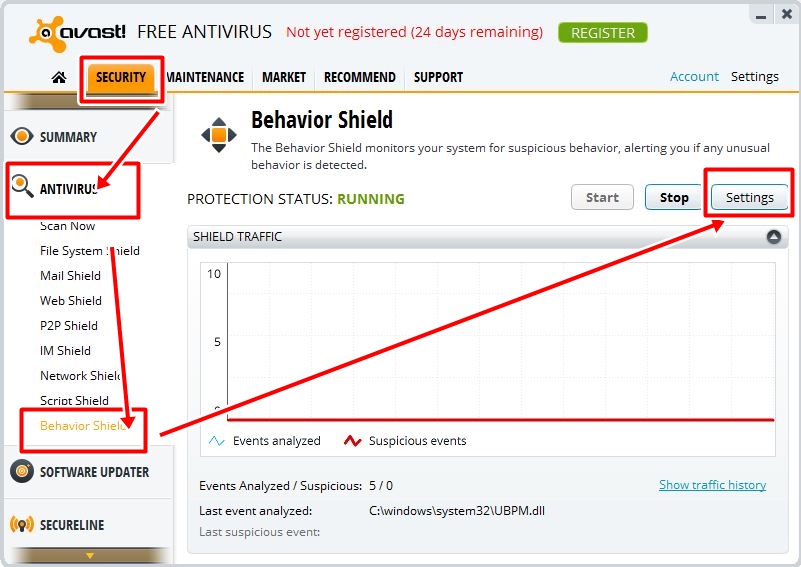
2. Select SECURITY from the top and select ANTIVIRUS > BEHAVIOR SHIELD from the settings at the right.
avast+Windows+8+black+screen+error

3. Click on SETTINGS and disable "Monitor the system for Unauthorized modifications" and Click on OK to save the settings. 
avast+Windows+8+black+screen+error

That's it you can restart your PC now and you wont get any Black screen error from now. People who are using Windows 7 also gets the same error and the solution is same even for the windows 7 users.
Read more ...

5 Best Browsers for Windows 8

Web browser is much needed application for each and every system connected to the internet. You can browse internet only through Web browsers. There are many web browsers available for Windows Platform and only very few are used mostly by the people. Windows 8 comes with its default web browser Internet Explorer, but people are addicted to other browsers than it. Here is the list of Best web browsers for Windows 8 in 2013. You can simply go through the list and choose the best one that suites your needs.
5+best+browsers+windows+8

5 Best browsers for Windows 8


1. Google Chrome

chrome+best+browsers+windows+8

Google chrome is the Best Browser for Windows 8 because of many good and unique features of it. Personally, I recommend this because browsing internet on Google chrome really give a good browsing Experience. Google chrome loads the webpages faster than the default browser (Internet Explorer). We can make our browsing experience much more interesting by adding themes to the chrome. There are wide range of theme available for it. You can pick any theme you wish in just a single click. There are Hell lot of extensions available for Google chrome which allows us to play many tricks with it. Google chrome also provides good security while surfing internet.

Download Google Chrome for Windows 8


Rating:    5/5

2. Mozilla Firefox

mozilla+firefox+best+browsers+windows+8

Till the release of Google chrome, Mozilla Firefox used to by Best Browser for Windows Platform. Even now Millions of people are using Mozilla Firefox, because of its features. Add-ons and extensions in it allows us to do many tweaks. Mozilla Firefox come out with really good User interface. It’s quite easy to deal with it. Firefox web browser is well optimized to perform faster. It comes with synchronization feature which enable us to share our bookmarks, history and saved passwords from one device to another easily.

Download Mozilla Firefox for Windows 8


Rating       4.9 / 5                                                    

3. Opera

opera+best+browsers+windows+8

You can browse internet faster than the normal speed by using the TURBO mode. You can arrange all your favorite website in speed dials so that you can access them with single click whenever you needs them. You can add as many as speed dials you want. Using opera link you can carry all your Saved passwords, Bookmarks, speed dials, so that you can access them instantly whenever you wish. There are lot of Keyboard shortcuts available for the Opera for easy usage.

Download Opera for Windows 8


Rating   4.8/5


4. Maxthon Web Browser

maxthon+best+browsers+windows+8

Maxthon is really a Cool Web browser and it deserves a place in the 5 Best web browsers for Windows 8. It comes out with thousands of available extensions. Maxthon is 100 % safe for web browsing and it will protect from the spywares, and viruses. It has a Filter pack which removes all the irritating pop up pages and ads instantly.

Download Maxthon for Windows 8


Rating      4/5

5. Internet Explorer 10

IE+best+browsers+windows+8

I don’t normally prefer using internet Explorer because it is very slow when compared to any other web browser mentioned above. There is famous Joke on internet about IE “Internet explorer is the best browser to download other Browsers”. There are many jokes floating on internet explorer as it get even hangs sometimes while using it. Though Microsoft it updating it frequently none can stop it from getting crashed.


Rating      3.5/ 5

So thats the list of the BEst 5 Browsers for Windows 8, hope you like. Dont you agree with our list, well if so please comment below about your opinion on this list of Top 5 browsers for Windows 8
Read more ...